Put your place on inRadius
The cafés and restaurants of Leuven that are open right now, and close to you. Here's how to join, step by step.
- 5 minfor the form
- Freewith your invite
- Same dayreview
Open your invite
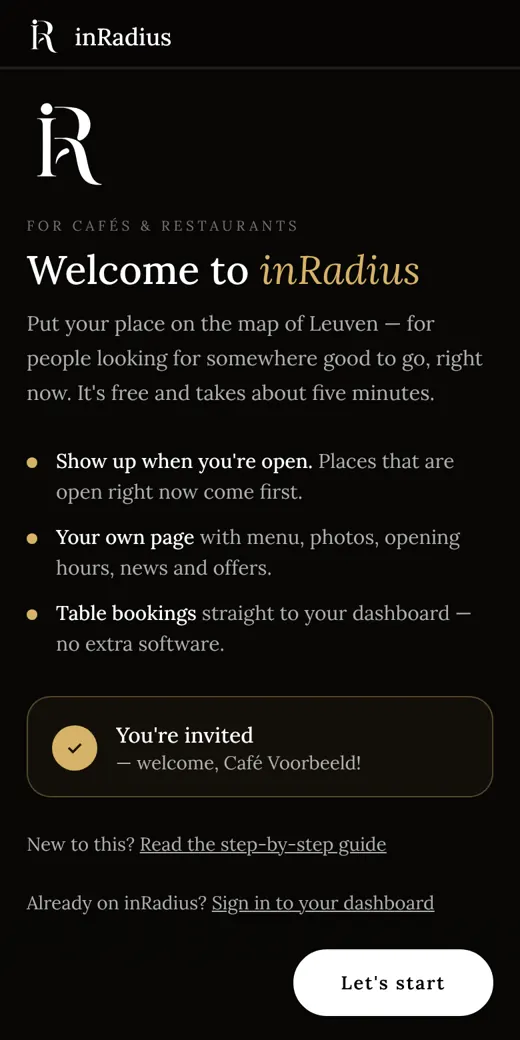
- Tap Start registration. You'll see “You're invited”. Then tap Let's start.
Your invite works once and is used up when your page is created. Please don't share it.
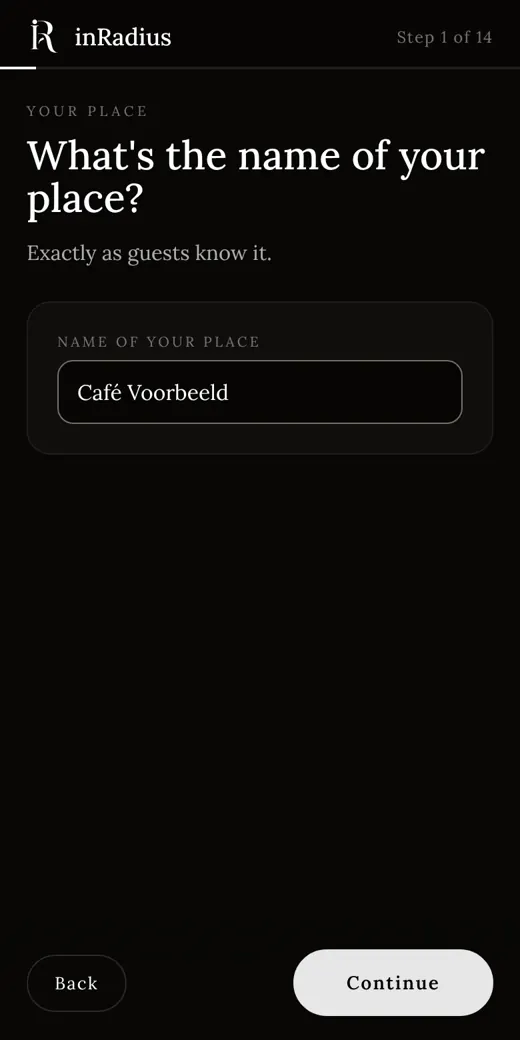
Name and address
- Write your name exactly as guests know it.
- Add the full street address with number and postcode. It's used for the map and the “Route” button.
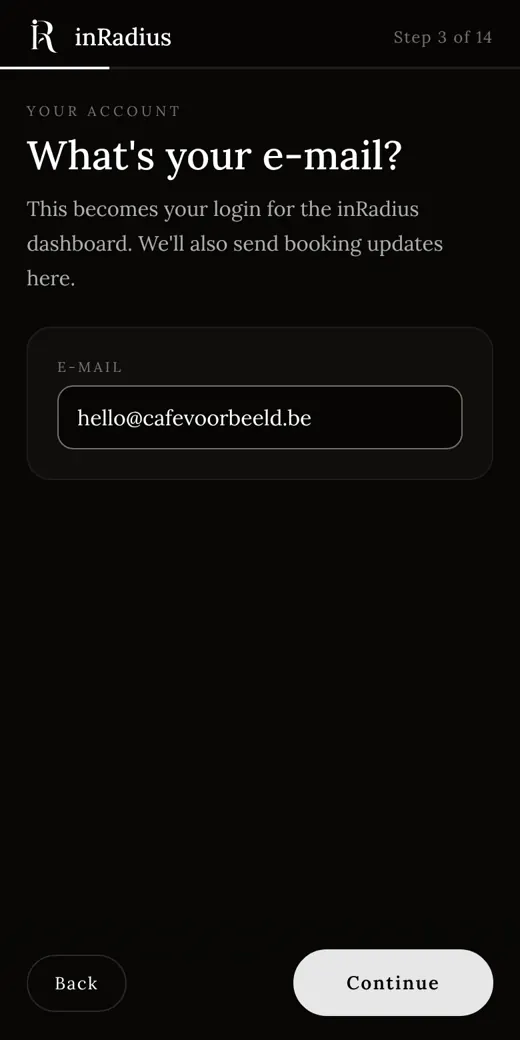
Your login
- Enter your e-mail, then choose a password of at least 8 characters.
- You'll use both to sign in to your dashboard.
Already have an inRadius account? Use another e-mail address, or sign in and contact us.
Phone and categories
- A phone number is optional and adds a “Call” button to your page.
- Pick every category that fits: Coffee, Breakfast, Lunch, Dinner, Apéro, Bars or Quick Bites. You appear in each one.
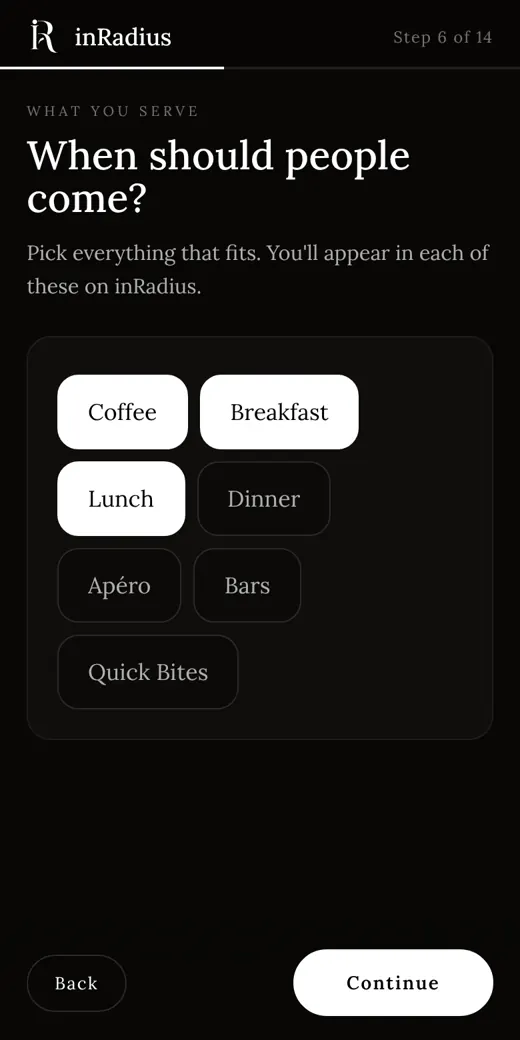
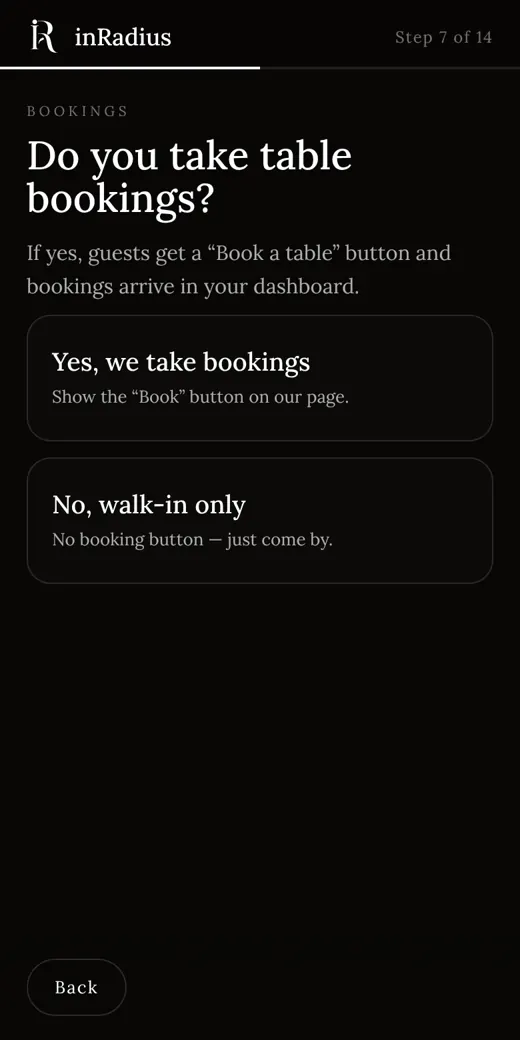
Table bookings
- Choose Yes to show a “Book” button. Requests arrive in your dashboard, where you confirm or decline them.
- Choose No if you're walk-in only.
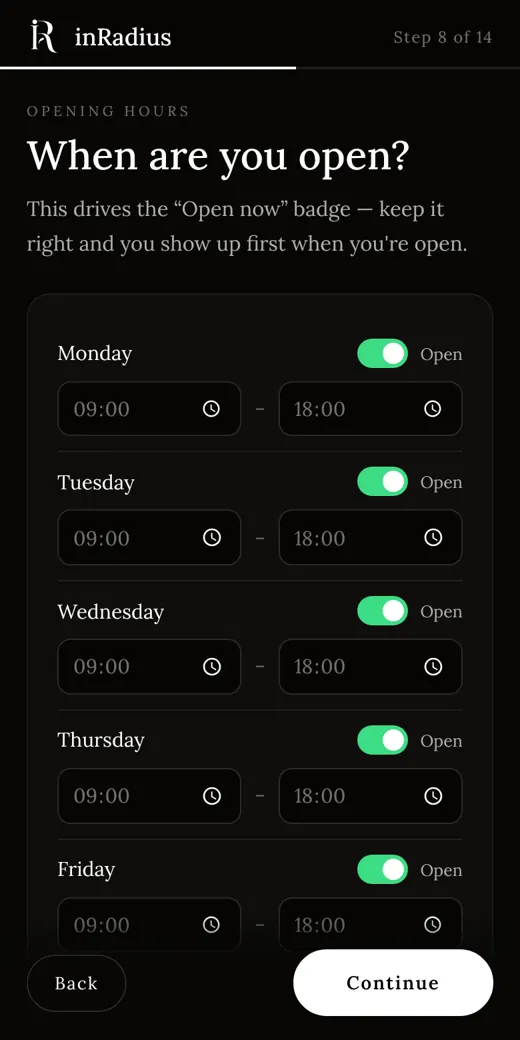
Opening hours
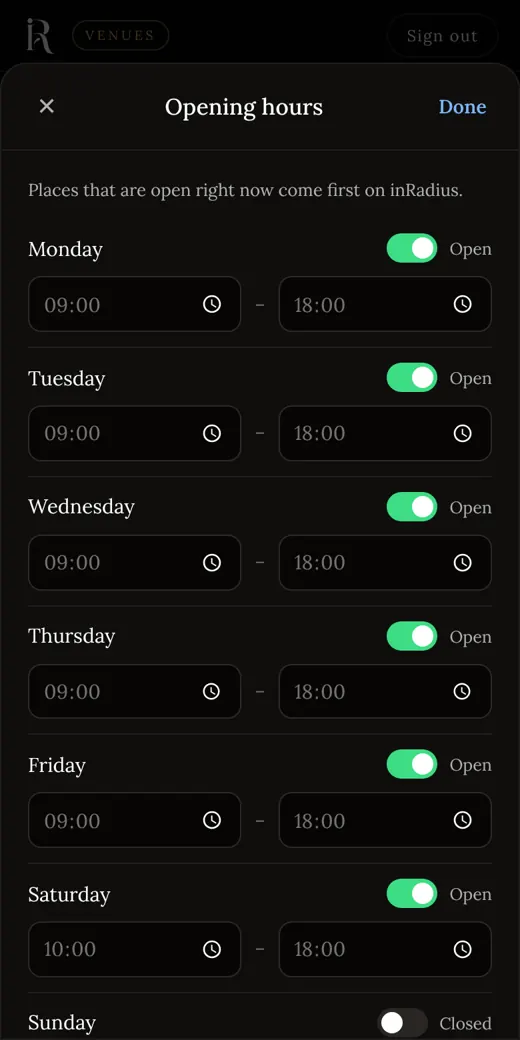
- Set your hours for each day and switch off the days you're closed.
- This drives your “Open now” badge — places open right now come first.
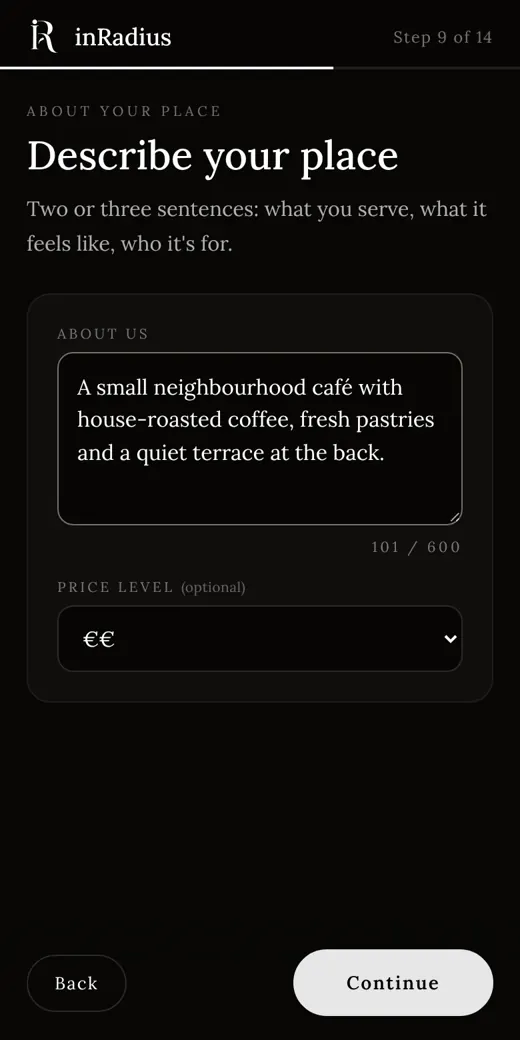
Describe your place
- In two or three sentences: what you serve, how it feels and who it's for.
- The price level is optional.
The extras
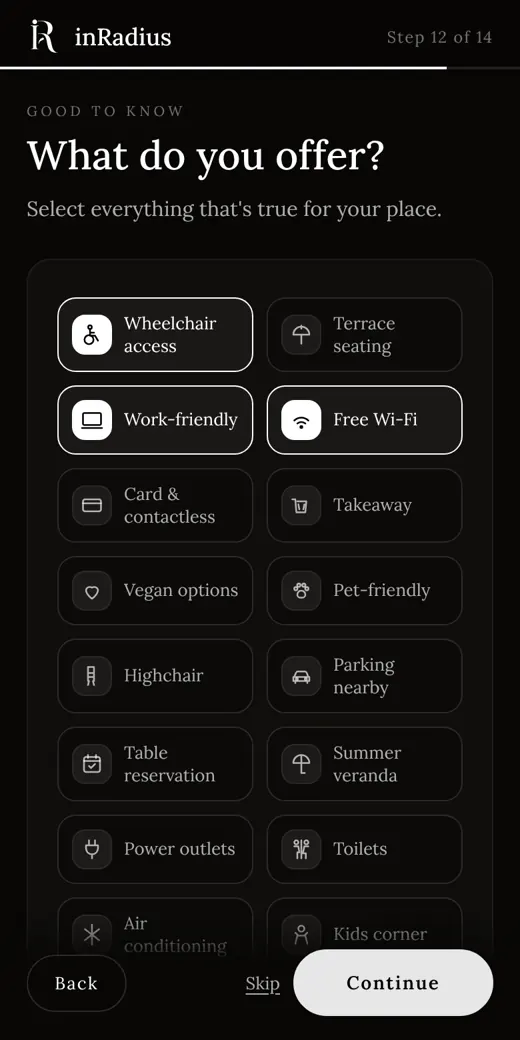
- Floor plan — a photo of a sketch is fine
- Tags — a few words that help people find you
- Good to know — Wi-Fi, terrace, wheelchair access…
- Online — Instagram and website
All optional. Tap Skip and add them later.
Check and create
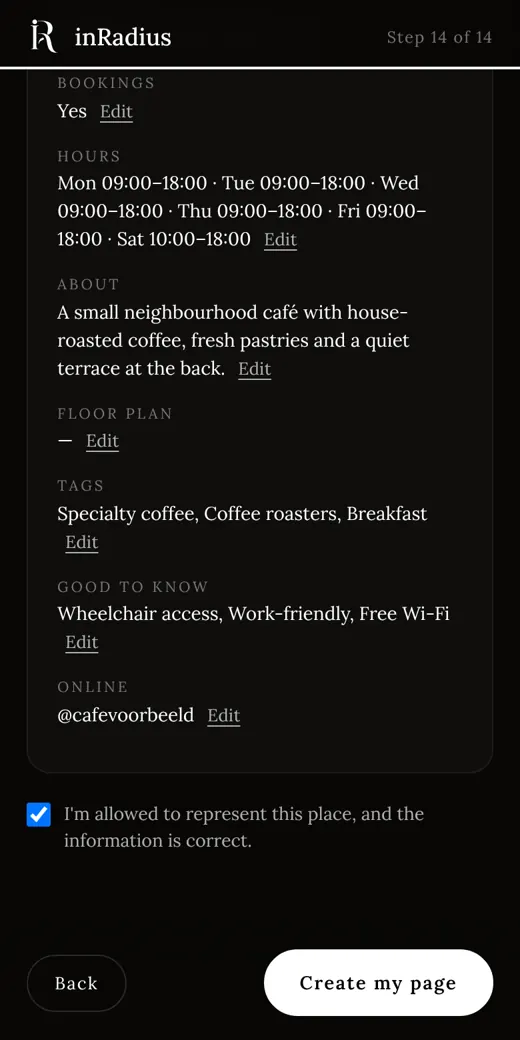
- Read the summary and use Edit to fix anything.
- Tick the box to confirm you may represent this place, then tap Create my page.
Confirm your e-mail
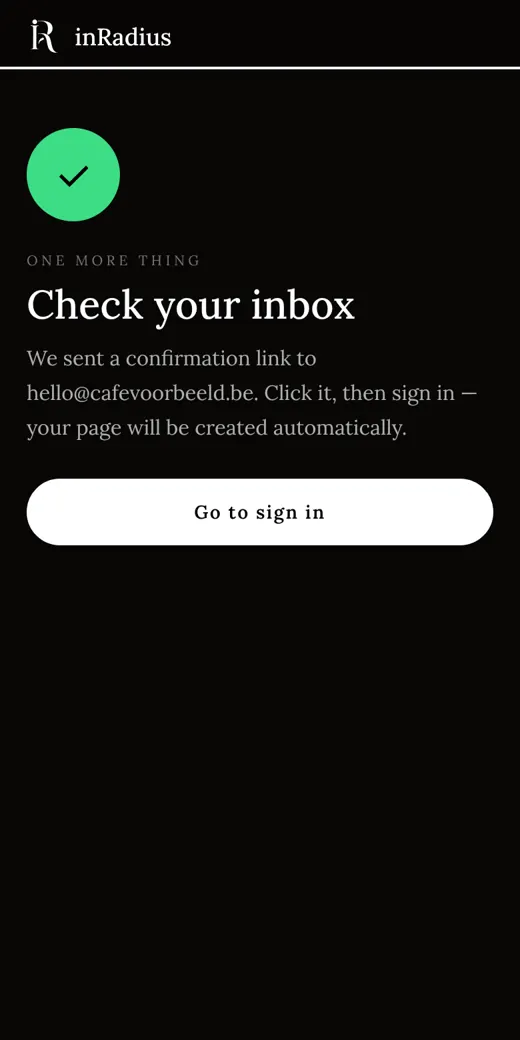
- We send a confirmation link to your e-mail.
- Open it on the same device and in the same browser, then sign in.
No e-mail after a few minutes? Check spam, then contact us. Please don't register twice.
We review, you go live
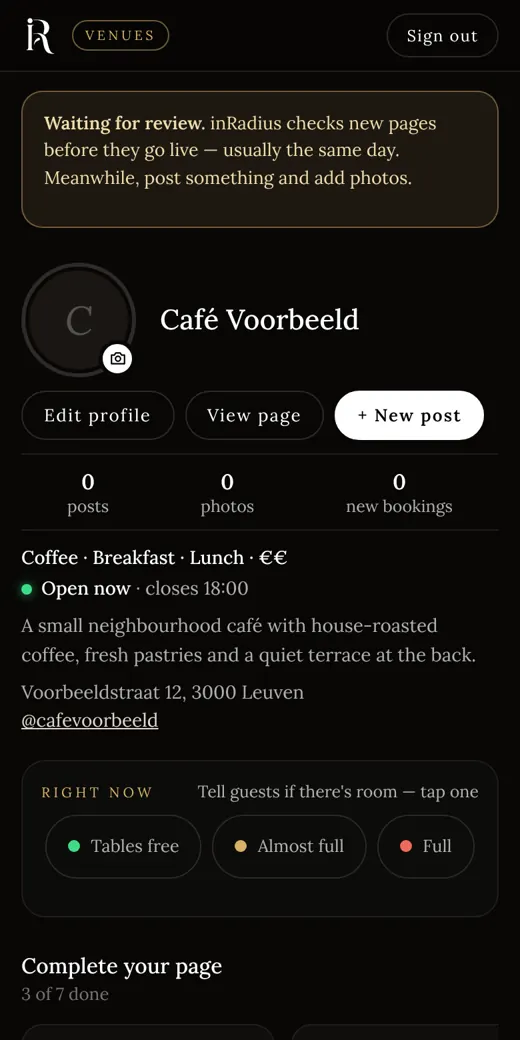
- Your page is created and shows Waiting for review.
- We check every new page, usually the same day. Meanwhile, add photos and a first post.
“Right now”
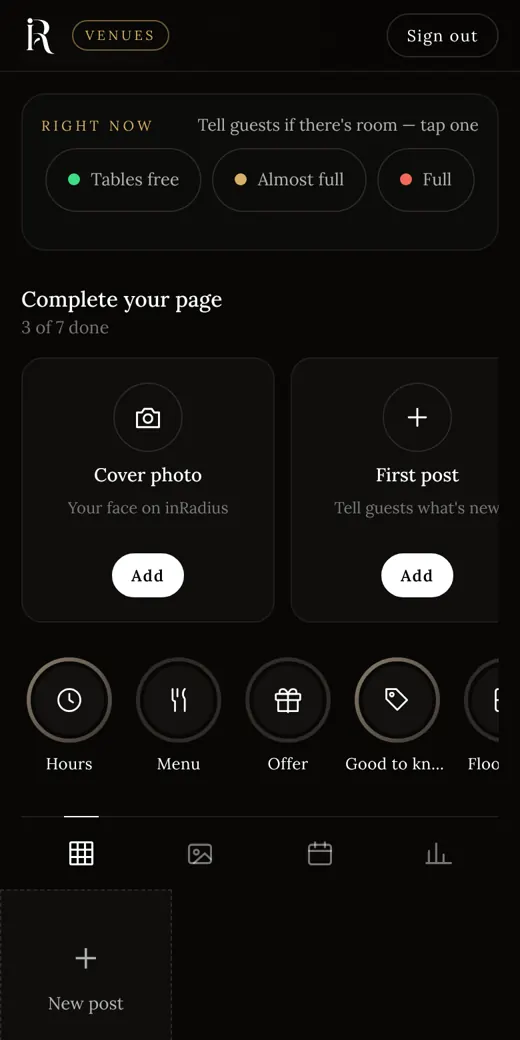
Tell guests whether there's room with one tap: Tables free, Almost full or Full.
Posts
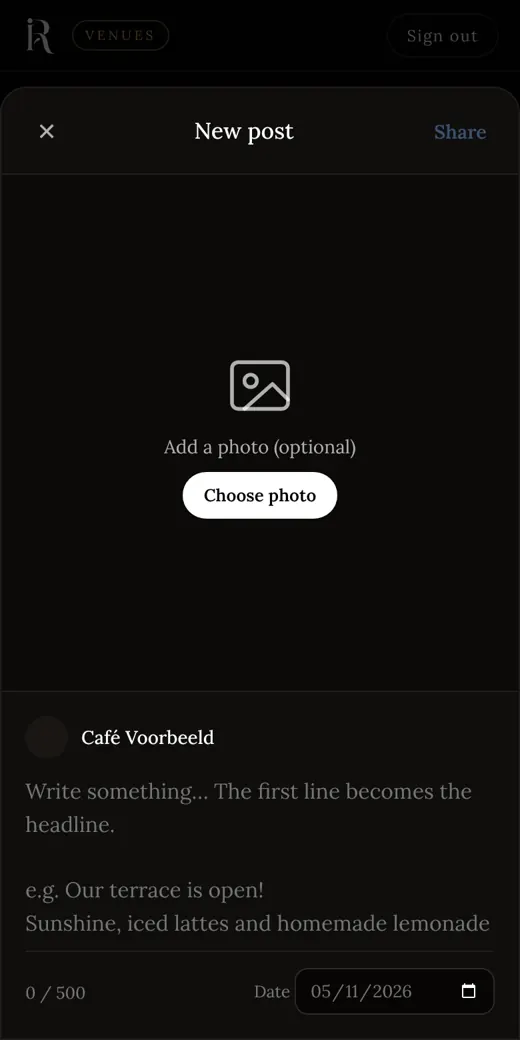
Tap + New post, add a photo and write your message. The first line becomes the headline; guests see your latest five.
Keep your hours right
Holiday, new schedule, closed for a week? Update your hours so “Open now” stays correct.

Ready?
Have your hours and description at hand. It takes about five minutes.